
Harvest Productivity Hacks
Our days can get very busy! And, as our days get busier, it becomes harder to set aside time to fill out a timesheet. We end up jumping from task to task in order to get everything done, leaving our timesheet in the dust.
When the dust finally settles, and we go to track our time the following day (or week), we have to cobble together a recollection of that time, asking ourselves “What on earth did I work on, and when did I work on it?!” We’ve all been there. It’s hard enough for me to remember what I had for lunch yesterday. Recreating a day’s worth of work, especially if it was incredibly busy, can be really tough!
Calendar Events in Harvest
Harvest heard from a lot of their customers who regularly reference their calendar when entering time into Harvest. That got them thinking: “Is there a way we can pull our calendars into Harvest?” As you’ve probably guessed by this point, the answer is “Most definitely!”
Harvest announced the ability connect Harvest with Outlook and Office 365 to pull your calendar events into your timesheet. You’ll no longer have to flip back and forth between Harvest and your calendar: you’ll now be able to reference what you worked on while tracking time. They’ve even made it faster to track time, since you can now click on a calendar event in Harvest, populating the new timer with all the relevant information.
How to Get Calendar Events to Appear in Your Timesheet
They’ve tried to make it as easy as possible to get calendar events into your timesheet. The next time you create a new entry in your Timesheet Day View, we’ll give you the opportunity to connect with Glucode Office 365 / Outlook account.
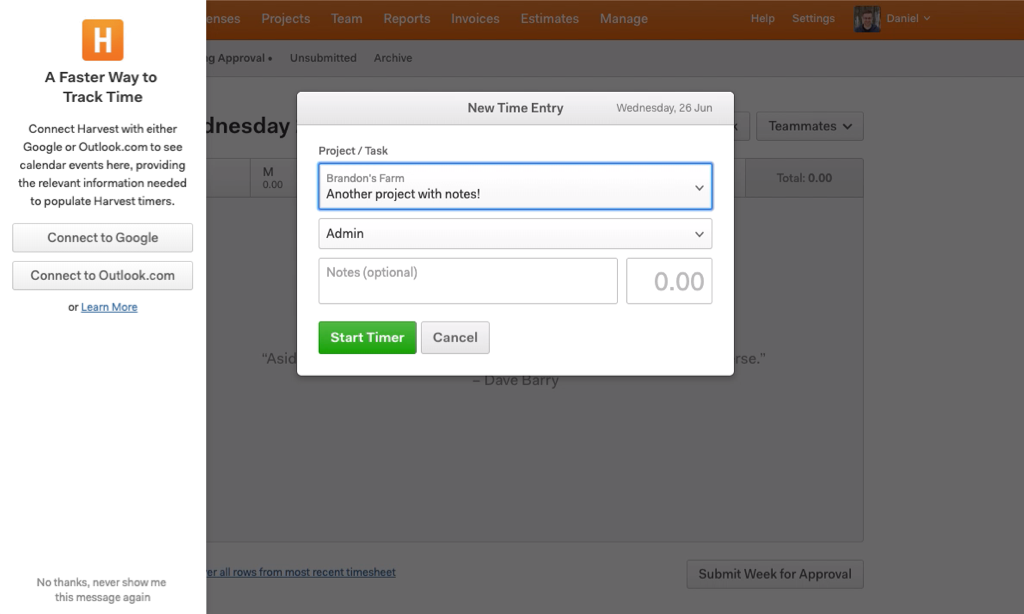
Once you’ve connected to your calendar, we’ll immediately start pulling events from those calendars for the day you’re entering time on!
To populate a Harvest timer, click on a calendar event. They’ll fill the new timer’s notes with the event summary, as well as the timer’s duration or start/stop end times (depending on your account settings).
Now all you need to do is select the timer’s project and task, and you’re done! If you’re interested in the finer details:
Here’s to Faster Time Tracking
We recognise that time tracking can be a burden—we want to simplify and speed up that process. Whether you track in real time, at the end of the day, or the end of the week, we feel confident that this new integration will help make time tracking easier for you.
Originally published by Daniel Marino modified by Glucode for internal context.
More details on integrating the Glucode Outlook Calendar
If the time you track often lines up with the events in your Glucode Calendar, integrating your calendar app with Harvest will allow you to use those events to populate new time entry information on the Day view of your timesheet.
Integrating your Glucode Calendar
There are two ways to integrate your calendar with Harvest:
- When you click New Entry in your Time section, a “drawer” will open on the left showing the two options. Click one of them and complete the authorisation process. Please ensure that you’re on the Dayview of your timesheet, since the drawer won’t display on the Week view.
- Click your name at the top right and select My Profile, then go to your profile’s Security tab. In the Integrations section, click Connect for the option you want and complete the authorisation process. You can connect this way even if you’ve dismissed the calendar integration drawer on your timesheet.
Creating new time entries from your calendar
Once you’ve connected your calendar app, click the New Time Entry button on the Day view of your timesheet to open a “drawer” with the current day’s calendar events. Note that the drawer won’t display on the Week view, and it won’t show all-day events.
When you click on the calendar event you’d like to create a time entry for, Harvest will add the event title to the new time entry’s notes and populate the entry’s duration or start and end time fields (depending on your Harvest account settings) based on the event’s start and end times. Select the relevant project and task, edit anything you’d like, and click Save Entry to add the new time entry to your timesheet.
Once you’ve created a time entry based on a calendar event, that event will be greyed out in the drawer and can’t be used to make more time entries going forward. If you delete the connected time entry, the calendar event will be available again for creating a new time entry.
More integrations:
Here are some of the other integrations to make use of:
Harvest for iPhone
Track time and expenses on the go.
https://www.getharvest.com/apps-and-integrations/iphone
Harvest for Android
Track time and expenses on the go.
https://www.getharvest.com/apps-and-integrations/android
Harvest for Mac
Lightning-fast time tracking right from your desktop.
https://www.getharvest.com/apps-and-integrations/mac
Harvest + Chrome
Track time to Harvest from the Chrome toolbar.
https://www.getharvest.com/integrations/chrome
Harvest + Edge
Track time to Harvest from the Edge toolbar.
https://www.getharvest.com/integrations/edge
Harvest + Firefox
Track time to Harvest from the Firefox toolbar.
https://www.getharvest.com/integrations/firefox
Harvest + Outlook.com
Speed up time tracking. You can pull your calendar events into your timesheet.
https://www.getharvest.com/apps-and-integrations/outlook
Harvest + Jira
Track time to Harvest without leaving Jira.
https://www.getharvest.com/apps-and-integrations/jira
Harvest + GitHub
Track time to Harvest without leaving GitHub.
https://www.getharvest.com/integrations/github
Harvest + Basecamp
Track your time without leaving Basecamp.